Migrate off legacy dbt versions
Legacy dbt versions v1.3–v1.7 are being deprecated on February 28, 2027. To keep your work running and supported, move your environments and jobs to the v1 Latest dbt release track now. A release track keeps you on a supported version automatically.
This guide and the Legacy dbt versions dashboard migrate you to the v1 Latest release track only. The tooling doesn't support migrating directly to dbt v2. If you want to move to v2, you can do so yourself after you finish this migration. Refer to Upgrading to v2.
Your project code, connections, and history stay accessible throughout.
The fastest way to migrate is the Legacy dbt versions dashboard in your account settings. It inventories every project, environment, and job on a legacy version, and lets you upgrade code with dbt Wizard and upgrade environments and jobs from one place. This guide walks through that workflow. Manual upgrade alternatives are at the end of the guide.
Legacy dbt versions dashboard
- In your Account settings, click Legacy dbt versions. You need permission to manage the account's projects and environments.
- Review At a glance. Each tile (Projects, Environments, and Jobs) shows how many are Supported (on a currently supported release track) and how many are Unsupported (on a legacy version, v1.3–v1.7). The tiles are informational only.
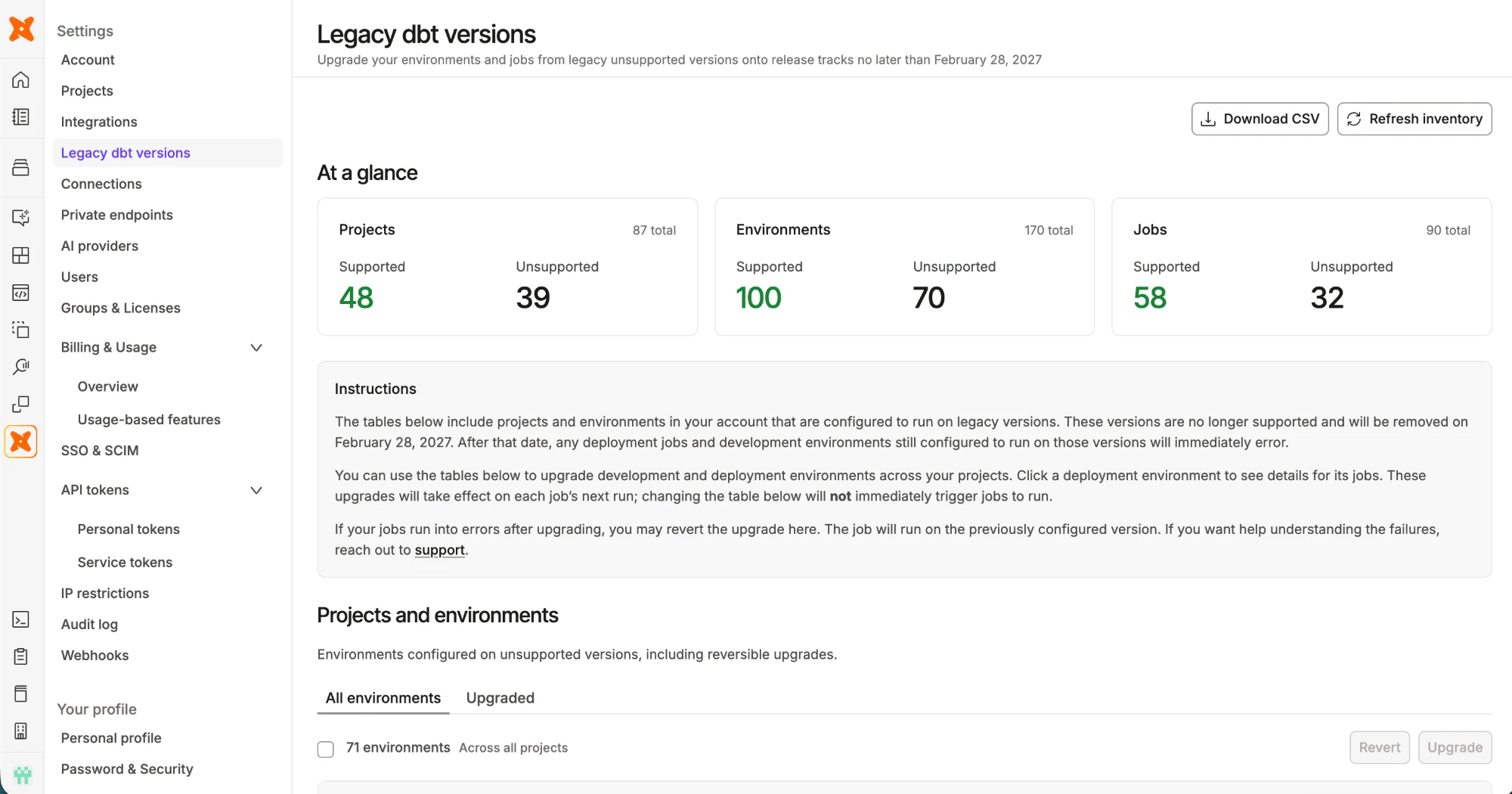 The Legacy dbt versions dashboard
-
Scroll to Projects and environments. Each project is listed with its environments, and each environment shows:
- dbt version: the version it's currently on.
- Jobs: the number of unsupported jobs over the total number of jobs.
- Last runs: the date and time of the most recent job run, or No runs recorded.
The All environments tab lists everything still on a legacy version. The Upgraded tab lists environments you already upgraded from the dashboard, which you can revert.
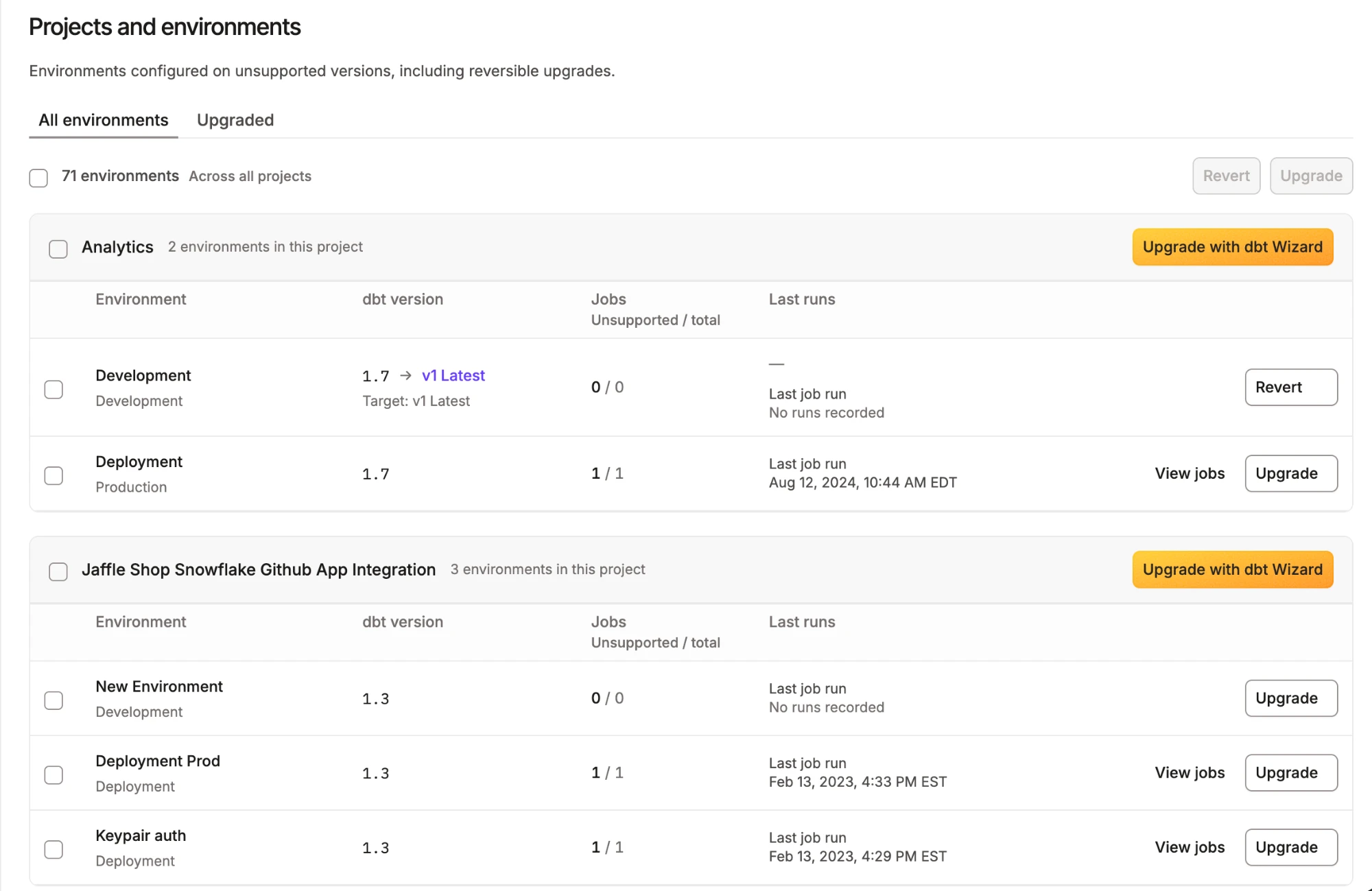 Projects and environments on legacy versions
- Use the following table to decide what to do with each environment.
If you don't upgrade a legacy environment or clear a legacy job, it's cleaned up when legacy versions are retired on February 28, 2027: a legacy environment (and its jobs) is deleted, a legacy environment that already has a job on a supported version is updated with only the legacy jobs removed, and a supported environment with legacy-pinned jobs keeps the environment and loses only those jobs.
| Environment | Jobs | What you do |
|---|---|---|
| Legacy (v1.3–v1.7) | Inherit the environment's version or are pinned to a legacy version | Upgrade the project's code, then upgrade the environment |
| Supported | One or more jobs pinned to a legacy version | Update the jobs from View jobs |
| Legacy and dormant (unused 12+ months) | — | Delete the environment, or upgrade it if you still need it |
Delete a dormant environment
Before you migrate a project off a deprecated version, consider whether it's needed at all. If a legacy environment has been dormant for a year or more (the Last runs column shows No runs recorded or an old date), you probably no longer need it, so delete it. The dashboard doesn't delete environments, so do this from the environment's settings.
Deleting an environment automatically deletes its associated job(s). If you want to keep those jobs, move them to a different environment first.
Follow these steps to delete an environment in dbt:
- Navigate to Orchestration > Environments.
- Select the environment you want to delete.
- Click Settings on the top right of the page and then click Edit.
- Scroll to the bottom of the page and click Delete to delete the environment.
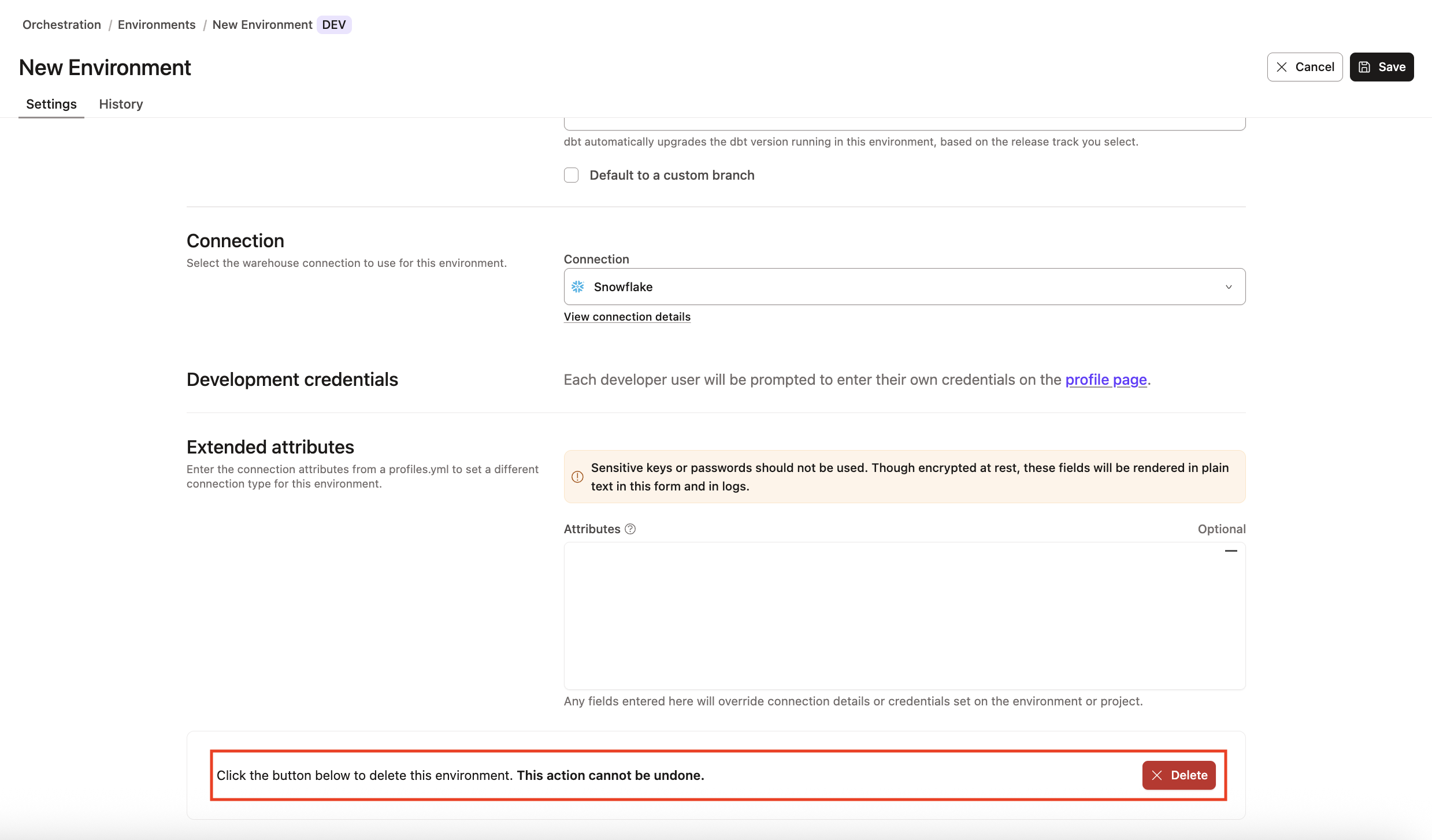 Delete an environment
- Confirm your action in the pop-up by clicking Confirm delete in the bottom right to delete the environment immediately. This action cannot be undone. However, you can create a new environment with the same information if the deletion was made in error.
- Refresh your page and the deleted environment should now be gone. To delete multiple environments, you'll need to perform these steps to delete each one.
If you're having any issues, feel free to contact us for additional help.
Upgrade a project's code with dbt Wizard
Upgrading a release track can surface deprecation warnings and incompatibilities that weren't visible on your legacy version. Fix these in your project code before you upgrade the project's environments.
On the dashboard, each project has an Upgrade with dbt Wizard button. dbt Wizard understands your project's lineage, tests, contracts, and run results, so it can resolve the deprecations and compatibility issues that a script alone can't. For more information, refer to About dbt Wizard.
-
On the Legacy dbt versions dashboard, find the project and click Upgrade with dbt Wizard.
-
Read the confirmation window, which explains how the migration runs:
- Studio IDE is pinned to the Latest release track for the project, so checks like
dbt parsetest your changes against the release track rather than the legacy version you're leaving. If Studio IDE is open for the project, it restarts. Saved files are preserved, but anything in progress is lost, including a running dbt command, unsaved editor changes, and the current dbt Wizard conversation. - dbt Wizard loads any skills in your project (
SKILL.mdfiles under askills/folder). A project skill with the same name as a built-in one replaces it, which can change how the migration runs. Consider removing or renaming custom skills first. - dbt Wizard works on a new branch and leaves the changes uncommitted for you to review. It doesn't change your environments or jobs.
dbt Wizard migrates your project code to the v1 Latest release track.
- Studio IDE is pinned to the Latest release track for the project, so checks like
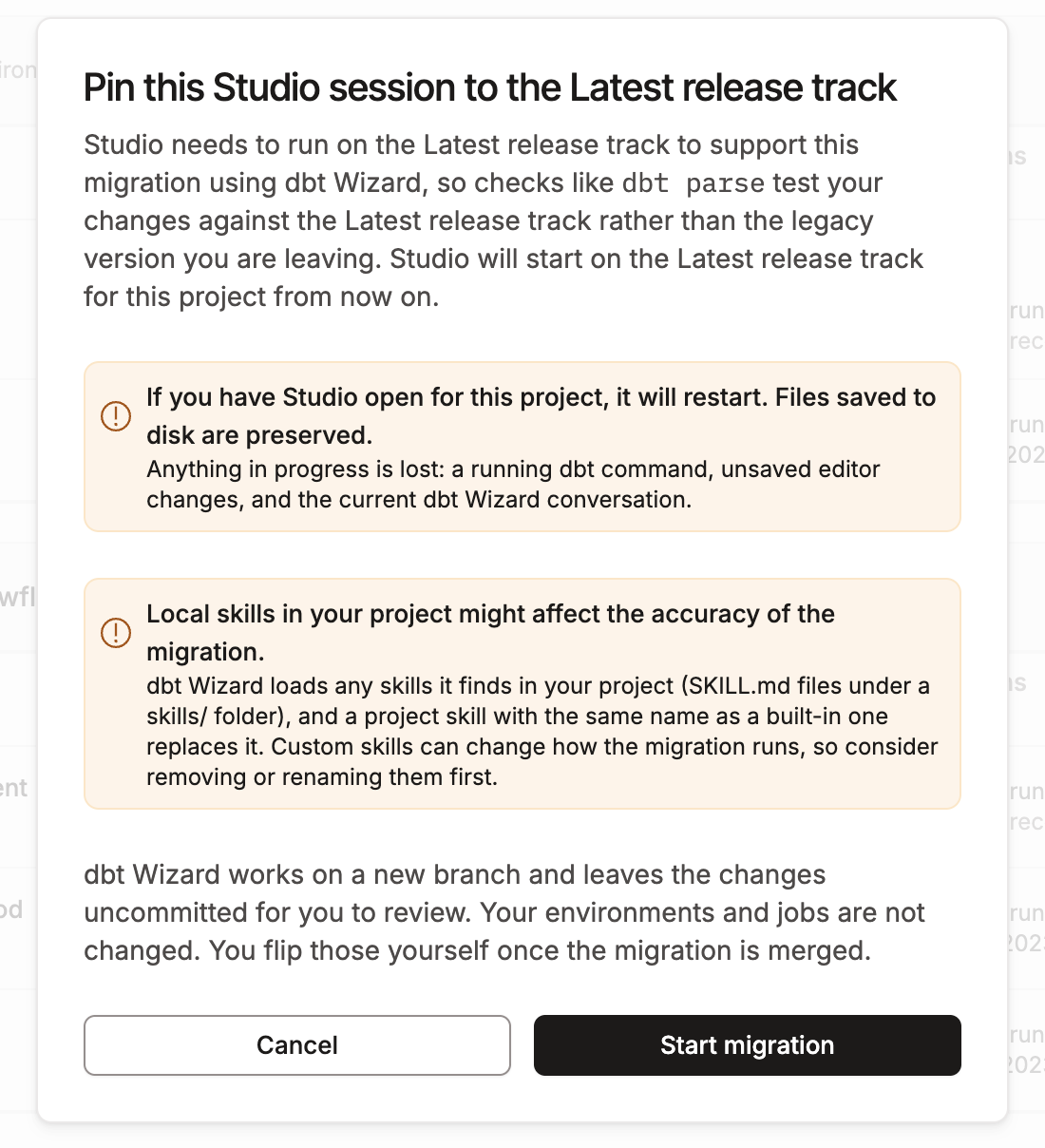 The dbt Wizard migration confirmation
- Click Start migration.
- Review the changes dbt Wizard made. Treat them like any other contributor's: review the diff, run your CI checks, then commit and merge.
For better results, ask dbt Wizard to triage deprecations by type before it edits, to check upstream and downstream impact for macros and packages that many models depend on, and to compile and build the affected models after each batch of fixes. Ask it to summarize what changed and why so reviewers can follow along in your pull request.
Once the migration is merged, upgrade the project's environments.
Upgrade environments
Start with development or test environments. Moving them to a release track first lets you find any remaining issues before you touch production. These are intermediate steps to complete the upgrade. Once you validate the jobs run from the dashboard, you'll need to [complete the upgrade]#complete-the-upgrade) from the Orchestration settings.
- On the Legacy dbt versions dashboard, find the environment and click Upgrade. To upgrade several at once, select the checkboxes next to the environments (or a whole project) and click Upgrade above the list.
- Read the confirmation window and click Upgrade. Upgrading starts a trial period in which your jobs run on v1 Latest. Upgrading:
- Moves the environment to the v1 Latest release track. Normal runs of jobs on unsupported versions use v1 Latest, including jobs explicitly pinned below v1.8. Job pins on supported versions and explicit per-run version overrides keep priority.
- Takes effect on each job's next run. It doesn't start runs, unpause jobs, or verify compatibility.
- Leaves saved versions, code, schedules, and Studio IDE sessions as they are.
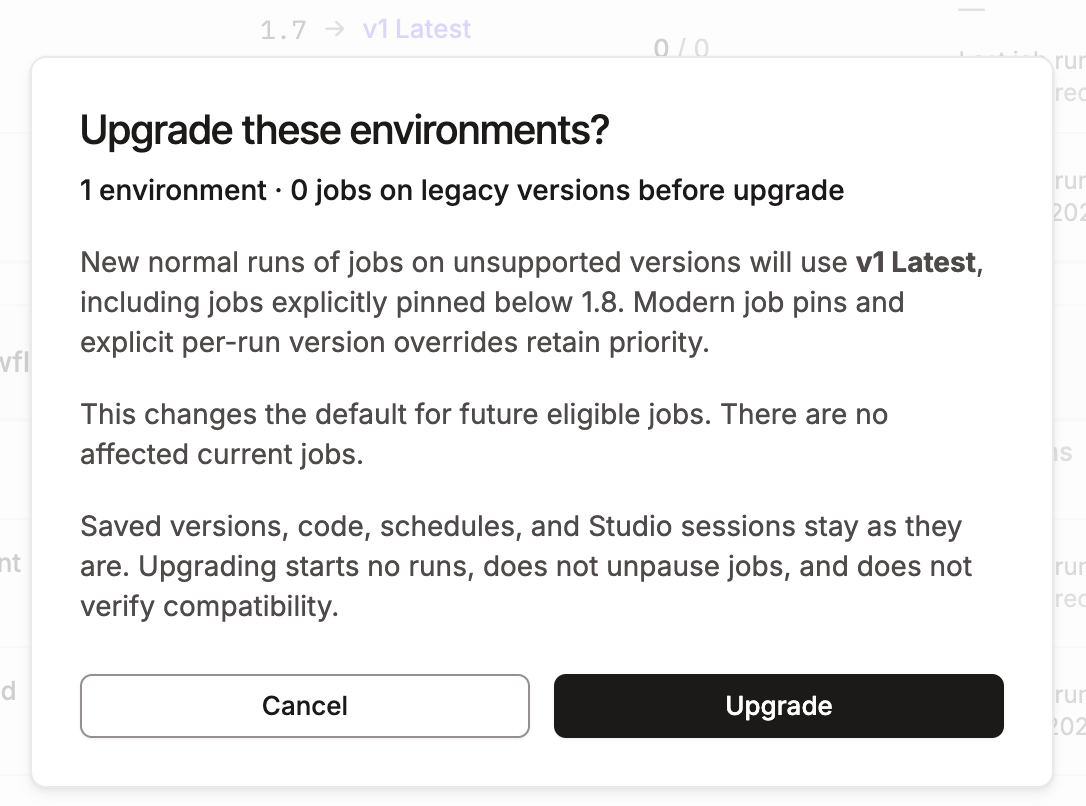 The environment upgrade confirmation
- Confirm the environment now appears on the Upgraded tab.
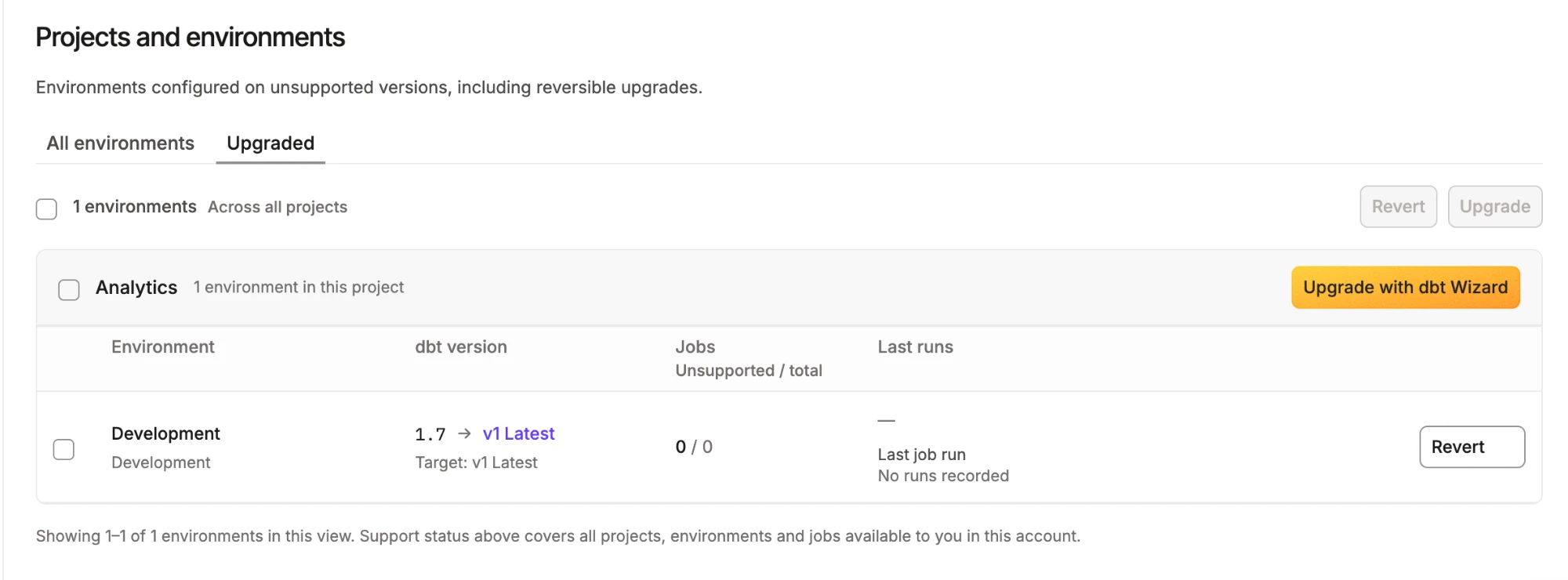 The Upgraded tab with a Revert option
If a job fails after the upgrade, select the environment on the Upgraded tab and click Revert. Jobs run on the previously configured version until you upgrade again. Reverting is temporary, because legacy versions are being retired on February 28, 2027.
Complete the upgrade
Upgrading from the dashboard only puts the environment on a trial run, where jobs execute on v1 Latest. After you verify that your jobs run successfully, update the environments and jobs to the v1 Latest release track yourself. Refer to Upgrade an environment from its settings and Update jobs.
Move to v2 later
After you finish migrating to v1 Latest, you can optionally move to dbt v2 on your own by selecting the V2 Stable release track in the environment's settings. Refer to Upgrade versions in dbt platform for the full walkthrough.
Update jobs
Jobs that are pinned to a legacy version in an otherwise supported environment need their own update.
- On the Legacy dbt versions dashboard, click View jobs for the environment. View jobs appears only for environments that have jobs.
- In the list of jobs, click a job to open its page in the product. This is the same page you reach from Orchestration > Jobs.
- In the job's settings, find the dbt version setting and either clear the override so the job inherits the environment's version or set it to the v1 Latest release track.
- Save your changes.
Other ways to upgrade
If you can't use the dashboard, or you want to handle part of the migration yourself, use the following methods.
Upgrade an environment from its settings
- Navigate to Orchestration > Environments and select the environment.
- Click Settings, then Edit.
- Click the dbt version dropdown and select the v1 Latest release track.
- Save your changes.
Fix compatibility issues with autofix
Autofix runs the dbt-autofix script to resolve many deprecation warnings for you. It's available from both the Studio IDE and the VS Code extension.
- Studio IDE: Open the environment in the Studio IDE, select Check & fix deprecations from the three-dot menu, then click Commit and sync.
- dbt VS Code extension: Run
dbt parsein the dbt VS Code extension to surface deprecation warnings, then resolve them with dbt-autofix or the extension's upgrade assistant.
Fix compatibility issues manually
- Run
dbt parse --no-partial-parse --show-all-deprecationsto list the deprecations in your project, or view them from the Dashboard in your dbt platform account. - Look up each warning in Deprecations and update your project code accordingly.
- Rerun
dbt parseto confirm the warnings are resolved, then commit your changes.
Validate your migration
Moving from a pinned legacy version to a release track can surface behavior changes, dependency issues, or adapter differences that weren't visible before. To reduce risk:
- Test in a development environment before upgrading your production and default development environments.
- Review your compile, build, and job run results after the change.
- Check the Upgraded tab of the dashboard, and revert an environment if you need a fallback.
Get help
If you hit a blocker you can't resolve, contact Support with your project ID, environment ID, affected job run IDs and logs, your current version, and the target release track.
Was this page helpful?
This site is protected by reCAPTCHA and the Google Privacy Policy and Terms of Service apply.